Instagram is a popular iOS app that allows you to share photos with friends and followers, as well as add cool retro-looking filters to the photos you share. Click this link to read more about Instagram.
Android users have never been able to use Instagram, as it is an iOS exclusive. Well, was an iOS exclusive.
At South by Southwest, a geek conference in Austin, Texas, Instagram co-founder Kevin Systrom announced that Instagram would be coming to Android pretty soon. He says that currently, the Android Version is in a private beta testing stage, and will be "coming soon".
"In some ways, it's better than our iOS app. It's crazy", said Systrom. In addition, he announced that the iOS version of the app, which was featured as Apple's iPhone App of the Year in 2011, had reached over 27 million downloads.
Although we still don't know exactly when Android users will gain access to this great service, as Instagram co-founder says, it's coming soon. So Androiders, hold on, soon you too will be able to take vintage square images.
We've all been waiting for the next generation iPad. Rumors about it have been floating around basically since the launch of the iPad 2, and now those rumors are all either confirmed or denied. Mostly confirmed.
With the new iPad, Apple is really focusing on graphics and images. The new iPad sports a Retina display, Apple's proprietary term for a display that, when viewed at a normal distance, the pixels are not discernible. The Retina display is also found in the iPhone 4 and 4S, as well as the iPod touch 4th generation. Although the iPad has less pixels per inch (PPI) than the iPhone and iPod touch, it has a 2048x1536 resolution, making it a higher resolution than even an HDTV.
The A5X Chip
The graphics are also greatly improved, as the new iPad boasts the Apple A5X chip, a dual-core system-on-a-chip with quad-core graphics. This makes high-quality games look much better, and really works well with the new Retina display.
The third feature focusing on images and graphics is the new camera built into the iPad. The new iPad sports the same front-facing Facetime camera as the previous iPad 2, however, the rear-facing camera is greatly improved. The new rear-facing camera, or, as Apple calls it, the iSight camera, features a 5MP sensor, as well as the same 5-lens optics system as the iPhone 4S, to give much-higher quality images than the iPad 2. The iSight also allows for 1080p HD video-recording, with built-in video stabilization. The interesting thing about the new camera is that Apple is calling it an iSight camera. The iSight name was originally used for the front-facing web-cams on the Macs, and was later replaced with the name "Facetime". Until now it had seemed that the iSight brand was killed.
The three features above all really work together to give users a great visual experience on the new iPad.
The iPad now also supports 4G LTE, on both Verizon and AT&T, giving much faster wireless speeds than before. One will have to buy an iPad specifically for the 4G carrier they want to use, and the 4G iPads also support 3G, if one does not live in a 4G LTE supported area.
The features above are all known to be battery-drainers, but Apple claims the same 10 hour battery life as the previous iPads, while only making the iPad a bit heavier and thicker, at 9.4mm thick, and 1.44 pounds heavy.
Voice Dictation Built into the Keyboard
Another new feature in the iPad is Voice Dictation, powered by Siri technology. Although you won't get the same Siri personal assistant you find in the iPhone 4S, the new iPad does have a voice dictation feature built into the software keyboard, so you'll be able to dictate text instead of typing in any app.
Along with the iPad announcement, Apple announced updates to Garage Band and iMovie for the iPad, as well as a completely new app to complete the iLife suite. iMovie now allows for you to create, as the Apple press release says, "Hollywood-style trailers as you shoot HD video". Garage Band also has a new feature, called Jam Sessions, which allows a group to wirelessly connect and record music together. iPhoto, a new Apple app, allows grouping of photos and a great editing feature. All three of these apps cost $4.99 each.
The new iPad is available for pre-order now, and will be available to buy March 16th. The cost remains the same, starting at $499, so if you want one, pre-order now at Apple.com. The iPad 2 is also still available, at a reduced price of $399.
Interestingly, Apple is veering off from it's naming scheme, as they are calling the latest version of the iPad "The New iPad", instead of iPad 3 or iPad HD, as some thought it would be called. It will be interesting to see whether or not Apple continues this new way of naming devices with the next iPhone.
What do you think? Will you be buying a new iPad? Let us know in the comments.
Apple, the creator of both the Macintosh OS, running on all Mac computers, as well as the more popular iOS, that runs on the iPhone, iPad, and iPod touch, has announced yet another update to the Mac OS that will bring both of those platforms closer together.
Until July 2011, the Mac and iOS platforms were completely separate. They had no similar user interface features, the underlying operating system was completely different, and the Apple-made apps were different from Mac to iOS. In July 2011, the next version of Mac OSX, the operating system Mac computers run, called Lion, was released. Lion brought some of the best features from the iPhone to the Mac. These weren't so blatantly iOS features, but more like an iOS-like experience coming to the Mac. After that point, the two platforms became more and more alike, with some of the major Mac apps coming to iOS, and more.
Recently, Apple announced the newest version of Mac OS, Mac OSX Mountain Lion, which will be coming this summer. The main idea of Mountain Lion is that Apple is bringing the best features in iOS to the Mac, and this time they're doing it straight out. As the Apple press release says, "OS X Mountain Lion... brings popular apps and features from the iPad to the Mac..."
Officially, Mountain Lion brings over 100 new features to Mac OS X, but many of those will go completely unnoticed. Any iOS user will probably recognize most of the main features in Mountain Lion.
Firstly, iChat has been replaced with an application Apple calls Messages. Messages allows you to use AIM, Jabber, Yahoo! Messenger, and Google Talk, as well as iMessage, the free Apple service originally introduced on iOS that allows users to send and receive text messages without using SMS. Mac users and iOS users both text each other, making iMessage a fluid messaging experience. The beta version of iMessage is available as a free download from the Apple.com website.
Reminders, an app also introduced on the iOS platform is becoming a Mac feature. It allows users to create simple lists with tasks to do, as well as set a time for the app to remind you to do that tasks. A user can create custom lists, and fill them with tasks, as well as set a priority, repeat date, and add notes. With iCloud, all Reminders data is synced from the Mac the iPhone, iPad, or iPod touch, and vice versa. Reminders had been integrated into iCal, but is now a separate and more simple app.
Notes is an app that has been on the iPhone since the very beginning, but is coming to the Mac as its own app for the first time. In addition to the simple note-taking abilities found in iOS, Notes for the Mac also allows you to add photos, videos, links, rich text, and bullet-points to make a more-robust note-taking platform. In Notes for the Mac, a user can also drag a note and pin in to the desktop.
Notification Center is another feature taken straight from iOS, and it looks almost exactly like the iOS version. Notification Center allows one to see and keep track of everything happening on the Mac. Any new emails, messages, calendar events, reminders, system updates, and even notifications from third-party apps will pop up non-intrusively at the top of the screen, and to see all of them in one glance, one can just swipe left from the right side of the track-pad, to view the Notification Center. Clicking on a notification will bring you directly to the proper place in the app.
One of iOS's least noticed feature is the ability to share photos, links, and more to various places with a tap. Mountain Lion brings this same feature to the Mac, called Share Sheets. Mountain Lion apps that integrate this feature will have the familiar share button, that, when clicked, will drop down a list of sharing options specific to that app.
Game Center, Apple's social gaming network launched originally for iOS is now coming to the Mac. Game Center allows players to play multiplayer games from an iPhone, iPad, or iPod touch, and now a Mac. Game Center also shows what games your friends are playing, and recommends new games a user might like. Game Center allows you to challenge friends in games, check out leader-boards, and earn achievements.
AirPlay mirroring, a feature found in the iPad that allows a user to hook up his device to any AirPlay supported device (such as an Apple TV), and mirror exactly whats happening on the screen, and put it on the big-screen, is now coming to the Mac in Mac OS X Mountain Lion. This can be used to play games, watch movies, or give conference presentations, all from the Mac.
A new feature that is specific to the Mac is called Gatekeeper. Gatekeeper is a security program for the Mac. Security is something that many think is not a problem on the Mac. For many years, due to the Mac's smaller market share, hackers and virus-authors kept away from the Mac, because Windows had a much bigger audience. However, with the Mac's market share slowly rising, bad guys see more potential in writing viruses for the Mac, and therefore viruses are becoming more common. Also, since there is this idea that the Mac is secure, users don't have software to protect themselves, and therefore are more likely to fall for a virus. Windows users, on the other hand, know of these insecurities, and are more likely to protect themselves. Gatekeeper is a really important feature that will help protect Mac users as malware becomes more common.
Mountain Lion is available now to registered Apple developers, and will be coming out for the public sometime this summer, but, like Apple did last time with their FaceTime app, a beta Messages app is available as a free download from the Apple website. Like Lion previously, Mountain Lion will probably be available as an upgrade for a relatively low price.
This is a major step forward in the evolution of the Mac OS X platform. Apple seems to be very set on slowly bringing Mac OS and iOS closer together. High-end users may feel that their desktop experience is dying, but all of the features found in the previous versions of Mac OS X are still there. Making Mac OS more like iOS is not taking away from the experience of a high-end user.
The iPhone and iPad seem to be very easy-to-learn platforms. Many people who could never operate a desktop computer can work an iPad fine, because of its intuitive user interface. Making Mac more like iOS can also be a great business move for Apple, because users who may never have touched a computer, but are familiar with iOS, will be more likely to get how to use a desktop computer, because of its similarities to the iPad.
This announcement not only lets us see what the next version of Mac OS X will look like, it lets us see Apple's strategy for the Mac, one that we will see in versions of Mac OS X for years to come.
Vizio, the popular television manufacturer, has always been set on making high-quality TVs at relatively low prices. Now they aim to do what they did for TVs to personal computers.
At the current Consumer Electronics Show (CES), Vizio announced a new line of personal computers, all running Windows, something that nobody would really expect from a television manufacturer. However, Vizio had been testing the waters of the more personal device market last year, when they announced their tablet device. They did not give much details as to the specs of the new devices, but CES attendees did get to play around with the new devices.
Vizio announced it's all-in-one PC. The computer is slick and has a minimalism design, and comes with a wireless keyboard and trackpad, stereo speakers, one for each side of the small base, and a remote.
The new Vizio all-in-one PC
The keyboard has a nice design, with large island style keys and a cool, modern-looking typeset. The large trackpad shares the same modern look as the keyboard. Technology blog The Verge reports that the touchpad was a bit finicky and didn't support multi-touch, but they say that those problems will probably be ironed out by the time the device is released.
The speakers are also beautifully designed. There are two individual stereo speakers, and a sub-woofer integrated into the base. Although we don't have too much experience with the device, we can assume that Vizio, also a manufacturer of home theater sound equipment, would put great care into the audio aspects of their computers.
The screen is available in 24 and 27 inch models, and is attached to a small base, where the "brains" of the computer are kept. The base has an SD card slot, a headphone jack, four USB ports, an Ethernet jack, an eSata drive, and a couple of HDMI ports. The HDMI port feature is interesting, as it allows the computer to be used as a TV, great for something like gaming or even watching regular TV (although the screen is quite small for that). However, Vizio decided not to include a TV tuner in the device, claiming that only 8% of people use the tuners in Vizio's actual television sets.
Vizio also announced a few laptops, but details on that are confusing. When asked about details, Vizio responded, "those are to come".
Overall, the new Vizio all-in-one seems like a great product, we still have no idea of the specs inside the device, or the price. Vizio does say that the all-in-one will be out in "Spring 2012".
Samsung's SMS-free text messaging app, called ChatON, has finally hit the Apple AppStore, making it available on Android, Bada, and iOS. Blackberry, Windows Phone, and web support is still to come. Check out the app on the AppStore here, visit the website here, and read about what it does below.
Samsung is getting into the market that Apple, the maker of the iPhone, RIM, the maker of the BlackBerry, and Facebook are already in. Samsung, the maker of many popular mobile phones, "smart" and otherwise, introduced it's ChatON instant messaging service.
The ChatON service will allow users to send short messages to each other for free, including texts, photos, contacts, and calendar. The service will be available at first on Samsung devices running their "semi-smart" mobile operating system, called Bada.
A Samsung
device running Bada.
The service will later come as an app on Android and iOS devices. While the users of the Bada version will get the basic capabilities mentioned above, the users of the Android and iOS app will get some more advanced features, such as commenting on their friends profile pages, create special "animation messages", and keep track of how often they instant message.
Ho So Lee, Head of Media Solution Center at Samsung Electronics, said in a statement, "With ChatON, Samsung has vastly simplified mobile communication by allowing users to connect to our upcoming feature phones and all major smartphones in the market. Users around the world can now enjoy easier and richer interactivity with whoever they want, in the format they want."
While the ChatON service seems like a pretty good idea, like I mentioned at the beginning of the post, Samsung is competing with some pretty big contenders. RIM's BlackBerry Messenger was recently revamped to become more "social", Apple has a similar service coming out soon on all iOS devices, called iMessage, and of course Facebook, with more than 750 million users, recently launched it's Facebook Messenger app for iOS, so Samsung's app will have to be pretty good to compete.
Samsung's ChatON service will make it's official debut later this week at Berlin's IFA Conference, and will be available in over 120 countries with 62 languages.
So, the ChatON service has a lot to compete with, but it's one of the only services available on more than one platform, with it's Bada, iOS, and Android apps. Overall, it seems like a great service, and I wish it luck in succeeding in the large world of IM services.
Since the computer mouse became mainstream, not much about it has. Multi-touch has probably been the latest change to the computer mouse. Until now. Computer mice were never more than computer mice. Until now.
The Logitech Cube
Logitech, the maker of many computer accessories, including keyboards and mice, wants to reinvent the computer mouse, or at least make a really cool one. They recently announced the Logitech Cube, a mouse/presenter hybrid with a really slick design.
Unlike any other mainstream mouse, the Cube is, as the name hints, a cube. It has a small and sleek rectangular design. Available in both black and white models, the Cube has a nice striped design. It uses an optical sensor at the bottom, and connects to your computer via a wireless USB dongle. The front of the device sports a on/off switch so that the device doesn't use power while not in use, as well as a USB port for easily charging the device.
To enable presentation mode, just lift the device off of the surface it's resting on, and the Cube will make the switch automatically.
No physical buttons are visible, but the entire top surface of the device is multi-touch, so the gestures you are familiar with from a smartphone will work seamlessly.
The cube will cost $69.99, and is already available for pre-order on the Logitech website.
Overall, the cube seems like a great device, with good features, a beautiful design, and a not-too-expensive price point. Now all we need is a matching keyboard so it doesn't look too out of place.
Google recently announced their new news-aggregation application, called Google Currents. Currents allows users to browse many content providers (magazines, blogs, etc.), and add them to their Currents, where they would have easy access to their articles, as well as a beautiful way to browse what might interest you. Currents is available as a free app for iPhone and iPad, as well as both Android phones and tablets.
To add a publication, called by currents an "edition", you simply search for the content you want, or find it using the "featured" section, or from any of the categories, and add it to your currents. However, as this is a fairly new service, don't expect to find every publication that you read. Once you have added all of your desired editions, you can tap on any of them to view the content in a beautiful, minimalist design.
Publishers can add content via a simple webpage, and can choose to add more than just simple articles. Publishers can add an updating section based on an RSS feed, a photo section that pulls in from Flickr, a video section hooked up with YouTube, and even a social update section, with updates pulled in from Google+ or any other RSS or Atom feed.
Google Currents already has many great publishers using the service, including PBS, The Guardian, and Zagat, as well as many well-known online blogs. There is no cost to subscribing to any of the editions associated with Currents. Users can also import any RSS feed, as well as easily import their Google Reader subscriptions, to quickly fill the application with relevant content.
The one thing that makes Currents stand out the most from any other news service is the design. Google Currents' design is simple and elegant, making things easy to see, and making using the app an overall enjoyable experience. The one slightly disconcerting thing about the design and user interface is that, once in an edition, you can basically scroll sideways endlessly, as each article in an edition is laid out one after another, with the only thing distinguishing one article from another being the article's title. Although this works if you think of the content as a magazine, it can be confusing if you think as each article being a separate post.
Google Currents is currently not available outside the United States. It would make sense for Google to have plans to roll the service out elsewhere, but no such plans are released at this point, so those outside the United States will just have to wait and see.
Google Currents is free, so what is there to lose by trying it out? Download Google Currents for your iPhone, iPad, Android phone, or Android tablet, and, while you're at it, add Gadgetator to your list of followed editions by searching for us.
Watch the video below for more information about Google Currents.
I never really imagined this day coming. But it's here. It's one year after Gadgetator's first post ever. So much has happened since them, and a big thanks goes out to Leo Laporte, host of the nationally syndicated Tech Guy radio show, on which Gadgetator got it's big boost. But enough about my blog. Let's get right to what this post's really about.
One year ago, on this day, I posted an article talking about Google's announcement of the Cr48, one of the major advancements in Google's Chrome OS operating system. If you are unfamiliar with what Chrome OS is, read the article here. In that article, I promised I would post a follow up after playing a bit with Chrome OS. I never did. Until now.
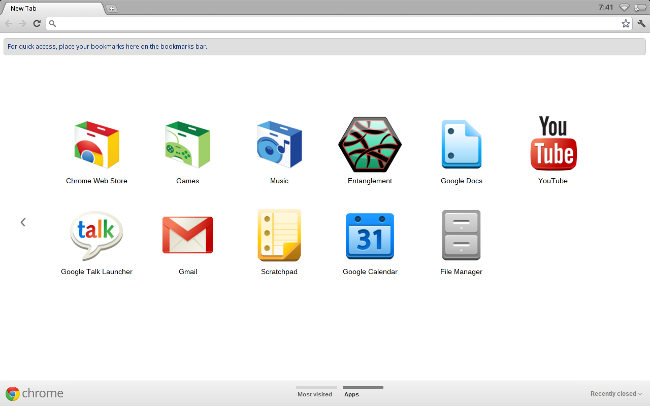
A lot has happened with Chrome OS in the past year. For example, a Chrome OS screenshot one year ago (see figure 1), as apposed to a Chrome OS screenshot today (see figure 2). After actually using a device running solely Chrome OS for close to half-a-year, I have developed a new opinion, and I'm here to share that. I guess this article is an overview of Chrome OS: one year later.
Figure 1
In a short recap of what was said in Gadgetator's first ever article, Chrome OS is basically a computer that only has a web browser. When you first open it up, you get your homepage, opening a new tab brings you to a page that basically contains a grid of glorified bookmarks. To a bunch of web pages. This all sounds great and all, but there's one major disadvantage. You lose all of your native applications. No more Photoshop, Microsoft Word, or iTunes. Everything you do has to be done online. Some might say that's impossible. That this'll never work. On first sight, one year ago, that's what I said. I quote myself saying, "There are great web apps out there, but I believe that for this to be a success, there need to be more great web apps. And until we get some of the most widely used native applications online, Chrome OS will be for the very light computer user."
Figure 2
After using Chrome OS almost exclusively for half-a-year, it's apparent I've changed my mind. You see, I was kind of pushed into using Chrome OS. Google offered its Cr48 to a limited number of beta testers to get feedback for the final product. I was one of those lucky recipients. Not wanting to just toss aside something I received for free, plus taking into account what Google actually intended for me to do with the device, I decided to give it a fair try. I never really went back. I was already stuck in the Google Universe. I used Gmail, Google Docs, Google Reader, and many other online alternatives to native desktop apps. As soon as I switched to Chrome OS, I found it surprisingly easy to find great online alternatives to any desktop apps that I need. Because I have a "real" computer, I could even print directly from Chrome OS using Cloud Print. Of course, I gave up some conveniences, but I believe that was a fair price to pay for the simplicity I now gained. No complex files, programs messing up your system, virus issues, or any other junk that comes along with a Windows or Mac computer. I couldn't have used this as my only computer, I still use iTunes regularly, but it definitely works a great, simple replacement.
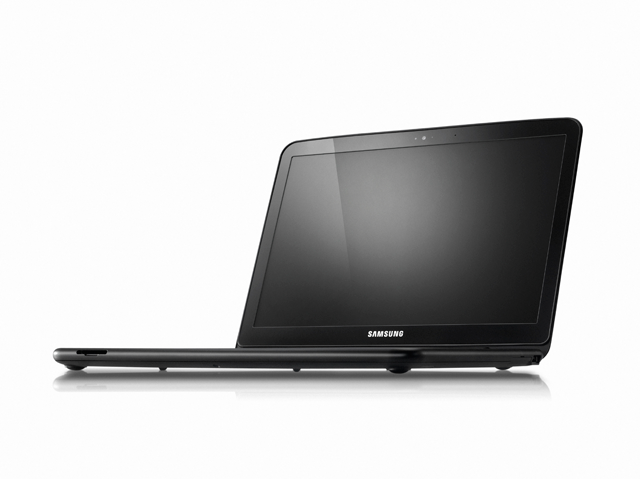
The Samsung Chromebook
Google now licences Chrome OS to manufacturers, who created their own 'Chromebooks'. Currently, both Samsung and Acer have a few models, which run from about $300-$450. At that price, it might be smarter to get a low-end Windows machine, but if you're willing to pay that price for simplicity's sake, it may be worth it. I think that, at this point, Chrome OS and the Chromebooks are great for either simple-computer users who don't want to be confused by the complexities of a "real" operating system, or to be used as a companion to a "real" computer, as Chrome OS has a clean interface, amazing boot time, and easy access to the web. Have you played with Chrome OS or the Cr48? Did you take the plunge and buy a Chromebook? What are your experiences with Google's Chrome OS? Like it? Drop a comment below with your experiences.
The latest version of the iPod Nano, the 6th generation, is a pretty cool and sleek device, but from almost the day it came out, people have been using it as a watch face. The device is the right shape and size, and has a perfect clock feature built in. But you can't use a Nano as a watch without a watchband.
The original Nano watch band was made out of a cheap rubber material, and was more like a wristband than a watchband. Soon, more and more watchbands were being sold, and the iPod Nano watch evolved from a rubber bracelet, to something you'd expect to find on a regular watch.
If you have a 6th generation iPod Nano, and want to use it as a watch, we'll go through the best bands at the best deals.
The HEX Original Watch Band
1. The HEX Original Watch Band
This is the simple, but high quality watch band. Available in nine different colors, there's sure to be one that matches your taste. The HEX features a silicone strap, an easy pop-in, pop-out design, and even has built in button controls. At $29.99, the HEX isn't the cheapest option out there, but it looks cool, functions well, and is an all-around good deal. You can pick one up at shophex.com or at Amazon.
2. The iWatchz Timepiece Leather Watch Band The iWatchz Timepiece is a more high end watchband model, and features a beautiful leather band, unlike the HEX, the iWatchz itself doesn't cover the iPod's buttons and use buttons of it's own, rather it uses a "unique patent-pending clip system that uses the iPod Nano's own built-in clip". This makes the watch look a lot more elegant, especially if you have a Nano with a not-so-colorful color. The beautiful design, however, does not come without a price tag, and this band will set you back $89.95. The iWatchz Timepiece is sold at iWatchz.com, or at Amazon.
3. The LunaTik Lynk
Probably the most high end watchband out there, the LunaTik Lynk is an extremely elegant watchband that would easily pass for a regular watch. Made of aerospace grade aluminum, this watch band is both sturdy and beautiful. The Lynk is available in silver and blackout, at $129.95 and $139.95 respectively. The beautiful design will match even the nicest, most elaborate clothing. It is not available immediately, but can be picked up for pre-order at LunaTik.com.
In this article, we cover three great watchbands in three different price ranges. However, there are many more great watchbands that may fit your needs better. Before making your purchase decision, please check out the websites of the companies we covered in the article, to view their wide selection of watchbands. The websites are shophex.com, iwatchz.com, and lunatik.com.
Have any other watchbands you've tried and like? Tried any of the bands we covered? Like them? Hate them? Leave a comment below with feedback.
Getting home broadband can be relatively easy to achieve just as long as you know what sort of deal or package you’re going to need in order to match it to what you like to do online. While there are seemingly a million and one different deals and offers out there in broadband-land, it’s not always that obvious which one is going to be right for your requirements. So, in order to simplify things, all you need to do is remember the following three pointers: 1. Before you sign up to any kind of high-speed internet deal it’s a great idea to do your research. The easiest way to do this is get online and compare and contrast the many different packages that are on the market. Don’t sign up for a deal that is bigger than what you need. So, for example, if you’re happy to do a bit of surfing, check emails and so on, then a smaller ‘lite’ style deal will be more than adequate. People who need to download lots of content, such as movies, meanwhile, should look for the beefier deals out there.
2. Read the small print associated with any of the deals or offers that you like the look of. You may find that the advertising blurb sells the package to you easily, but it’s not until you check the hidden details that you might spot stuff that will ruin the enjoyment of your new home broadband package. Limitations on the amount of data that you can download (and upload) is a common issue with some of the less powerful packages. If you’re going to be online and downloading a lot then this is a key issue to look out for.
3. Finally, explore what is involved in the package that you like the look of. Find out if all of the hardware and software comes included as part of the deal and if anyone will need to come to your house to set things up. If they do, ask if this is included in the price. Also keep an eye out for the sort of technology that is being used in your area, as some internet service providers have a better infrastructure than others. Asking around your neighborhood, reading real consumer reviews and doing that homework before you sign on the dotted line can pay real dividends in the long run.
So, just as long as you pick through these three suggestions as you explore the
available home broadband options in your area, then you will soon be on the
right track to getting a high-speed broadband internet supply in your house.
Remember that, at the end of the day, you are the customer, and any internet
service provider that’s worth signing a contract for should, ideally, do everything
they can to help you get set up as quickly and as cost effectively as possible. Author Bio: Rob Clymo writes for www.broadbandgenie.co.uk and www.mobilephonegenie.co.uk, the online consumer advice portals for broadband, mobile broadband and mobile phones.




 Posts
Posts


