Showing posts with label windows. Show all posts

Microsoft Shows off Windows 8 for the First Time

Wednesday, June 1, 2011


A lot has been going on at the current tech conference D9, from Google announcing it's first city supported on the new Google Offers, and now to Microsoft officially showing off, for the first time, Windows 8.

Windows, Microsoft's widely used operating system, has gone though many versions over the the years, most recently XP, Vista, and 7. There have been many rumors about what we may see in the next version of Windows, which Microsoft is calling Windows 8. Many of the rumors involved blurring the line between desktop Windows and Windows Phone 7

The presentation Microsoft gave at D9 really showed that they were trying to blur the line between the desktop and mobile operating system. Microsoft also published a video, the first in a series of many, showing some of the new features found in Windows 8.

As shown in the video below, the new Windows 8 UI will be based on the same tiles design as Windows phone 7, but will also have the ability to run regular Windows apps.

Microsoft Unveils Windows Phone 7 Update, Calling it Mango

Tuesday, May 24, 2011

Earlier today, Microsoft held a press event, announcing some of the newest features that will be found in the latest edition of their mobile phone operating system, Windows Phone 7. This update to the operating system is code-named Mango.

Andy Lee, president of Microsoft's mobile division, took the stage today and announced some of the new features that will be found in Mango.


To start off, Twitter and LinkedIn will now be integrated into Windows Phone 7. Also, the homescreen will be updated slightly, so that notifications are pushed more.

Call history will be sorted by person, and you will be able to see all of the calls, texts, IMs, and visual voicemail (another new feature in Mango) all in one "list". Related to this, a new feature in Mango will be the ability to group friends into groups. Groups will show all of those friend's activity, be it calls, texting, or even social networking activity. One can also communicate with all of the members in a group.

Although the long awaited copy and paste has finally come in an update a while ago, Mango will also add predictive text while typing. These are both important features that seem standard on any phone. However, predictive text can either save you time, or become an extremely annoying part of texting.

The new "threads" feature allows users to carry on a conversation from Facebook to texting, etc.

Andy Lee, President of Microsoft's mobile devision
Also regarding communication, Mango will allow users to keep email inboxes separate or combined, or even both. For example, one might keep his work email separate from his personal email, but he/she could combine two separate personal inboxes, and have work and personal inboxes. Some new security features have also been added for enterprise email.

Voice activated technologies will also be integrated into Mango. Microsoft showed how one could have text messages read to them while in the car, one could also respond just using his/her voice.

Microsoft is also bringing smarter apps, along with the ability to run multiple apps at once. Another improvement that will come with Mango is faster web browsing. Bing, Microsoft's search engine, will be integrated into Windows Phone 7, and will provide a slightly "smarter" search. For example, searching for the name of a movie will bring you directly to showtimes.

Mango will be released in the fall as a free update, and, unlike the previous update, will just require users to plug their phones into their computers. Mango will first appear on Microsoft/Nokia devices, but will soon be available on other phones. Mango will also be available on a few new devices that will support 4G.

Overall, Mango seems like an exciting update. If, unlike the previous update, everything goes as planned, this should give consumers more of a reason to buy a Windows Phone. Even with great hardware and a great OS, the problem still remains: With only 18,000 apps available (compared to over 300,000 for the iPhone), the devices are still not compelling. Although Windows Phone 7 is not going to outsell the iPhone anytime soon, Mango is a good step in that direction. A little help from app developers, and Windows Phone 7 might find itself on top.

Staying Connected While on the Road

Thursday, January 27, 2011

     It's a few days until I take a trip to Albuquerque, New Mexico. I'll be there about three days, and have been thinking about how to stay connected. For my work, all I really need is a web browser, but some need powerful desktop machines that can do HD video editing or 3D rendering. You can't really bring a 10 pound desktop computer with you on the trip, so how do you stay connected without lugging around a giant PC?  
     There are some great, free tools to help. I use a great free remote access program called TeamViewer. TeamViewer is free for noncommercial use only. I don't know exactly what the term "noncommercial" means, but buying a licence for commercial use costs a crazy $749. TeamViewer gives you amazing capabilities for free, such as file transfer, recordable sessions and more. You also get a free iPhone and Android app ,both which allow you to connect to other PCs remotely. The android app is still in beta, which does have some serious restrictions, but expect a non-beta version soon.
TeamViewer  on Windows
     TeamViewer is pretty simple to use, but each PC has to download the free application. When you download and open the application, the first thing you see is a home screen with an ID number and a password. Next to it is a text box labeled "create session". To have someone remotely connect to your PC, tell them your User ID and password, they enter that in, and the other user is on your PC. It's just as simple to start a session.
     Once you are connected, you see the other one's screen. You use the mouse and keyboard just like you  normally would on your PC. At the top of the screen is a small taskbar which lets you record the session and even do VOiP (voice over the internet). 
     To connect normally you have to have a person at both PCs to tell you the password. You can set up unattended access by making a free TeamViewer account. You then give the computer a name and password and you're ready to go. 
TeamViewer iPhone App
     The iPhone app is also really simple and easy to use. It works almost like the desktop client, but has less customization options. It gives you a list of recent remote access connections, and a cleaner looking interface. The controls for clicking and scrolling might take some getting used to, but overall, the entire system is easy to use.
     The days of not being connected because you aren't home are definitely over. With always connected smartphones, WiFi all over the place, and even data connections in some laptops, you really don't have the excuse of "I'm on vacation." With tools like TeamViewer, you now can work wherever you are, for little or no cost.

Startup tips: your new PC

Sunday, December 12, 2010

 
iTunes
     Those first few days are really fun. You've taken the new laptop out of it's box. It smells new, looks new. Your new $500 baby. You turn it on, waiting for it's first boot, it's first time launching Windows 7, and then it hits you. What can you do with it. All it has is basically a web browser and maybe a trial version of Microsoft Office.
     What do you install, what do you download? This may help.
     First of all, get rid of Internet Explorer, at least until Internet Explorer 9 comes out. I recommend Google Chrome, a  different,  faster, and easier web browser, you can    get it at google.com/chrome.
     If you own an iPod or iPad, iTunes is a must-have, even if you don't      have an iPod, just to organize your music and videos , iTunes is my favorite, get it here at apple.com/itunes.
     You'll probably need a word processor, and if you don't plan on spending at least $150 on Microsoft Office, OpenOffice.org is a great free alternative, it includes a word processor, a presentation maker, a spreadsheet creator, and more. It is available as a free download at openoffice.org.
     A antivirus is very important, and although your PC probably came with a free trial antivirus, you probably want to uninstall that and either  buy an antivirus, or, although it won't work quite as well, install a free one. I personally use Microsoft Security Essentials. Available at .microsoft.com/security_essentials, this free antivirus should work fine for your needs.
     Windows Live Essentials is also a good free set of software. It includes an IM (instant messenger) app, a movie make, a photo gallery app, a blogging app, and more. Available at explore.live.com/windows-live-essentials. Note: many of the Windows Live Essentials reguire a free Windows Live ID, available at http://explore.live.com/.
     If you havn't already, you should look into getting a free Google Account, (available at this link and click on, on the right hand side in the middle, create an account.) which gives you access to Gmail, Google Docs, and much more, some of which might replace actual software.
     You probably will have to get some more software, some of which you will have to pay for, but to get started this is a good list of some free software to get you going.


UPDATE: I got a comment from Riley Quinn recommending ninite.com, which will install almost all of this software and more in one download. You just choose which software to install and click Get Installer. Thanks Riley.


Windows Phone 7

Thursday, December 9, 2010

     Gone are the days of the ten pound, giant black hunks of plastic and metal they once called cell phones. Over the years, the cell phone has evolved all the way down to the small flip phone, or the "feature phone", and more recently, the smart phone.
     The smart phone, a slim device that makes phone calls. And does pretty much everything else out there. You can read and write email, surf the web, post pictures to Facebook, and even share your exact location with Foursquare or Gowalla.
    There's the iPhone running iOS, the many devices running Android, RIM's Blackberry, Window's Mobile, and now a new Microsoft Creation. Windows Phone 7.
    Microsoft had tried the smart phone business with Windows Mobile. It was used by some, but was mostly not usable and unpopular. Microsoft decided to rethink the smart phone. Their result? Windows Phone 7.
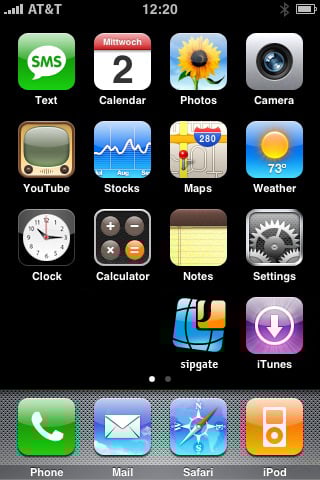
     iPhone, Blackberry, Android, and almost any other smart phone OS, is based on the grid of icons, or apps. Windows Phone 7 is not that.
  
iOS
Android
Blackberry   
Window Phone 7 incorporates the idea of hubs. For example, in the people hub, you get your contacts, and updates from them, and integration with Facebook, all in one "hub". With any other OS, you would have to go through many apps to do what you can do in Windows Phone with one tap.
Windows Phone 7
     Currently, Windows Phone 7 is available in 5 phones. The Samsung Focus, the LG Quantum, the HTC Surround, the HTC HD7, and the Dell Venue Pro. The carriers available are AT&T and T Mobile, but other carriers should come along eventually.
     Microsoft has really made a very nice looking product. Will it be successful? I don't know. I personally think the "hub" thing is a bit too complicated. But only time will tell.  

For more info visit microsoft.com/windowsphone 


Search This Blog

Subscribe to Gadgetator by eMail

Most Popular

About the Author

Elazar Krausz founded Gadgetator in December 2010, and has been writing there ever since. To find out more, click below.
Online Marketing
Add blog to our blog directory.